
By Brendon McAliece – LetsFlyVFR.com
When Windows Updates Go Wrong!
There’s an old saying in IT:
“If it isn’t broken, don’t fix it.”
Unfortunately, Windows Update doesn’t always give us that choice.
Like most PC gamers, I’ve always kept my computer reasonably up to date. Security patches matter, bug fixes are generally welcome, and over the years Windows Update has become something I rarely gave much thought to.
In fact, I honestly can’t remember the last time a Windows update caused me a genuine headache. That changed at the end of July. What followed became one of the most frustrating troubleshooting journeys I’ve experienced in years and one that almost convinced me my VR headset, graphics drivers or even DCS World itself had suddenly developed serious problems.
In the end, the answer came from the last place I expected. A Windows Update!
Before we go any further, I want to make something absolutely clear.
This article is not claiming that every Windows PC was affected. Millions of gamers installed the July updates without any noticeable issues far from it! Microsoft releases security updates for good reasons and to date I cannot remember ever having an issue.
However, after spending several frustrating evenings researching Microsoft Answers, Reddit, Steam forums and gaming communities, I discovered I certainly wasn’t the only person reporting strange behaviour after the latest round of updates.
Think of this article as a case study. It documents exactly what happened to my PC, what symptoms I experienced, the troubleshooting process I followed, and why uninstalling the July updates restored my system to full health.
If your gaming PC has suddenly developed unusual behaviour after updating Windows, perhaps my experience can help you solve yours.

My System Before the Updates.
Before the end of July, my gaming PC was performing beautifully. It’s not the newest or fastest machine on the internet, but it’s been carefully tuned over time and has proven exceptionally reliable.
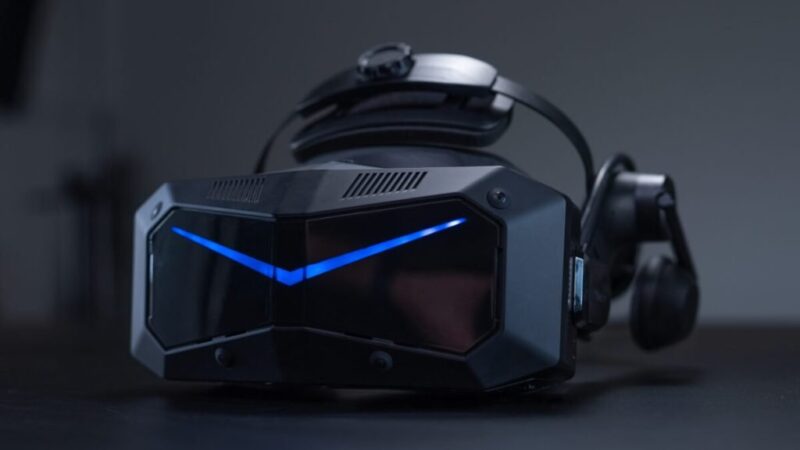
I primarily fly DCS World in Virtual Reality using a Meta Quest 3S headset connected through Virtual Desktop. Like many flight sim enthusiasts, I value smooth, consistent performance far more than chasing benchmark numbers. Everything simply worked.
The Virtual Desktop & Streamer app routinely streamed well above 100 Mbps, producing crisp cockpit instruments, clear terrain and an immersive VR experience. Windows Defender quietly protected the system without constantly interrupting my gaming sessions. Streaming software performed flawlessly & Recording videos was effortless.
In addition applications launched instantly the entire computer felt responsive and stable.
In short… Everything was peachy!
Then the July Updates Arrived!
Like many people I received a number of updates in late July or 2026. Windows installed its monthly updates automatically with nothing appeared unusual immediately afterwards. The computer booted normally as well as applications still opened with the desktop looked exactly the same.
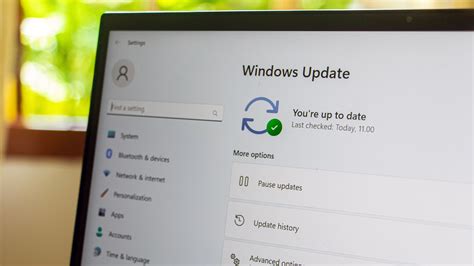
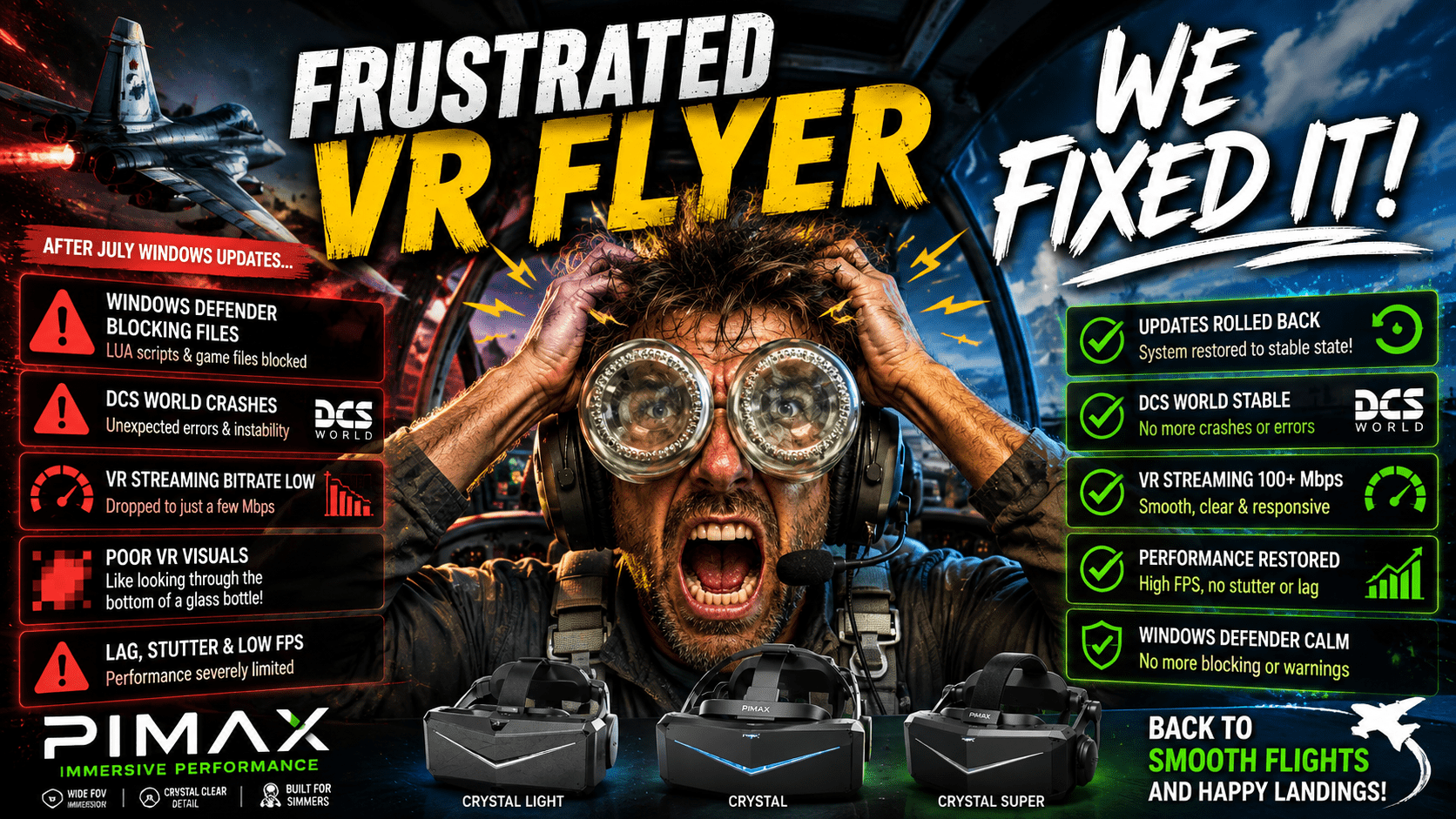
But after a short while something began to feel…different. Windows itself seemed ok on its own but opening DCS WORLD proved to be a nightmare. Windows defender started to have issues with random .LUA files and other saying they were not digitally signed and then crash the program!
There were tiny pauses opening applications. Small delays began appearing throughout normal desktop use. Certainly Nothing dramatic with many programs. Nothing that immediately screamed “broken.”
Just enough to make me wonder if perhaps I was imagining it. Unfortunately, things soon became much worse.
Get Amazing Merch at LetsFlyVFR – ETSY Store.



Love Aviation – Fighters – Humour – Check out our store Here!
Windows Defender Suddenly Went Berserk
The first real warning sign appeared when launching DCS World. For years Windows Defender had happily ignored my simulator installation. Suddenly it seemed determined to inspect almost everything. Files that had never previously caused concern were suddenly being questioned.
Quite normal .LUA scripts began triggering warnings with some components appeared to be treated as suspicious simply because they weren’t digitally signed. Windows Security became unusually active, questioning files that had existed safely on my system for years.
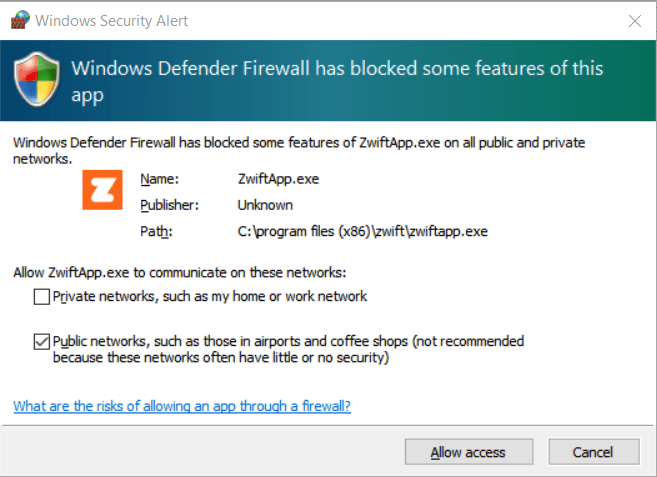
As anyone familiar with DCS World knows, LUA scripting forms a huge part of how the simulator operates. Aircraft systems, missions, utilities, community modifications and countless quality-of-life enhancements all rely heavily on LUA.
When Windows suddenly starts interfering with those files, things begin to break in unpredictable ways. The result? Random crashes. Functions that previously worked perfectly suddenly stopped behaving correctly. The simulator became unstable.
Naturally, my first assumption wasn’t Windows. I didn’t know what was wrong but didn’t immediately blame DCS World or Windows but after some soul searching it seemed the answer loomed large!
Then VR Fell Apart
The biggest surprise came when I put on my Quest headset. Normally Quest Link streams comfortably above 100 Mbps, producing a sharp image that’s easy to read, even inside complex aircraft cockpits.
This time, however, something was very wrong. The streaming bitrate had collapsed to only a few megabits per second. The image quality was almost unbelievably poor & something I had never experienced.

The best way I can describe it is this: Imagine trying to fly while looking through the bottom of an old glass bottle. Everything appeared smeared. Compression artefacts were everywhere. Cockpit labels became difficult to read. The entire VR image looked soft and heavily compressed.
This wasn’t simply lower frame rates being an issue because they were still at 60FPS or more. It looked as though the video stream itself had been reduced to almost nothing. For anyone who spends hours flying in VR, you’ll understand just how frustrating this became on my free Sunday afternoon when I looked forward to some Air to Air combat, all was lost!

The Troubleshooting Marathon
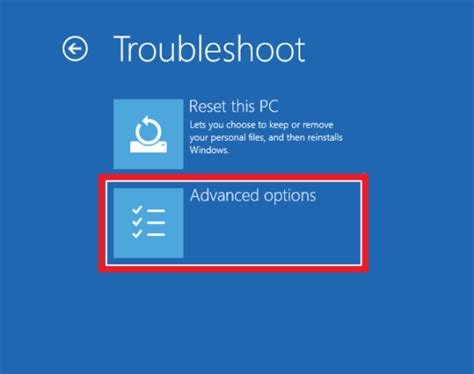
Like most enthusiasts, I didn’t immediately point the finger at Windows. Instead, I began working through the usual suspects such as drivers and program settings but after noticing the Bitrate was extremely low I suspected my own internet and router. I restarted this but there was no change to the issue!
There were constant files being blocked so I tried to allow them through the fire wall and then the App & Browser controls started blocking files. This made no issue so I ended turning off Windows Defender. Not digitally signed or unknown files were the messages I was getting stopped at that point. At this point after saying lots of bad words I shut everything down and went to bed after a lost afternoon and an evening searching!
Then I Started Looking Beyond My Own PC.
The next day I took time to consider what had changed recently and came to the idea I had just had several Windows 11 Updates and Windows Defender updates. Could this be the issue I thought? Nothing else made sense and this was a common thread to the issues.
Co-Pilot – Answer!
As with the world we live in I decided to ask Windows AI Co-pilot if there were any reported issues with Windows Updates? It immediately came back with widespread reported issues!
So I wasn’t the only one effected and the answer was easy enough! Roll back the latest updates!
What I discovered was reassuring. Not because there was a confirmed explanation, but because I realised I wasn’t alone. Across Microsoft Answers, Reddit, Steam forums and gaming communities I found many users describing problems that sounded remarkably familiar.
Reports included:
- Reduced gaming performance after the July updates.
- Windows Defender suddenly questioning previously trusted files.
- Firewall prompts appearing unexpectedly.
- Games refusing to launch correctly.
- VR performance deteriorating.
- Increased stuttering.
- Anti-cheat software behaving differently.
- Strange network performance affecting game streaming.
- Random crashes in previously stable titles.
Were all of these caused by Windows Update? Probably not. The world of PC gaming is complicated with thousands of variations to every level of PC build. Different hardware, drivers and software combinations produce different behaviours. However, there were enough independent reports to convince me my experience wasn’t unique.
One Last Experiment.
By this stage I had exhausted almost every other troubleshooting avenue. Only one option remained. Remove the July Windows updates!
Normally I would never recommend uninstalling security updates as a first step but this time seemed the MOST OBVIOUS course of action to me.
Microsoft releases them for important reasons, and removing them should always be considered carefully. But after eliminating almost every other possibility, I decided it was worth the experiment. I rolled back the recent July updates then restarted the PC then launched DCS.
The difference was immediate and windows felt responsive again. Most importantly Windows Defender stopped interfering with files it had previously questioned. The Virtual Desktop returned to streaming comfortably above 100 Mbps and as a result the VR clarity returned!
The “looking through a glass bottle” effect disappeared completely with DCS once again behaved exactly as it had before the updates.
No graphics drivers changed.
No BIOS settings changed.
No hardware changed.
The only significant difference was that the July Windows updates were no longer installed. For my PC, the improvement was impossible to ignore.
Does This Mean Windows Was Definitely the Cause?
Not necessarily. Correlation does not automatically prove causation. Modern gaming PCs are incredibly complex & Windows updates, graphics drivers, motherboard firmware, antivirus definitions, game updates and VR software are all changing constantly.
Find More Amazing Gift’s on LetsFlyVFR – ETSY Store!



However, when a system performs perfectly before an update, develops multiple unrelated problems immediately afterwards, and returns to normal after those updates are removed, it’s difficult to dismiss the timing as pure coincidence.
My experience strongly suggests the July 2026 updates played a significant role in what happened on my machine. Your experience may be completely different.
If you had issues please let me know in the comments below!
What Other Gamers Reported.
During my research I found recurring themes appearing across numerous gaming communities. Some players reported lower frame rates while others others described unexplained micro-stuttering.
Several VR users complained about deteriorating image quality & there were reports of Windows Security becoming unusually aggressive toward game folders.
Some users experienced firewall prompts for applications that had been trusted for years. Others described streaming software behaving erratically.
It’s important to emphasise that these reports came from many different hardware configurations and different games. There doesn’t appear to be one single issue affecting everyone in exactly the same way.
That actually makes troubleshooting more difficult.
Why DCS World Can Be Particularly Sensitive.
DCS World is unlike most modern games. It’s highly configurable which is why It makes extensive use of LUA scripting. Many players install community aircraft, missions, utilities, kneeboards, voice software, controller tools and other enhancements.
Because of this flexibility, DCS has far more moving parts than many mainstream titles. If Windows Security suddenly becomes more aggressive in how it evaluates scripts or unsigned components, DCS users are more likely to notice the effects than someone simply launching a standard single-player game. That doesn’t mean DCS is doing anything wrong.
It simply means there are more opportunities for Windows to interfere.
Should You Immediately Uninstall the Updates?
Not necessarily! Rolling back Windows updates should generally be considered a troubleshooting step not an automatic solution.
Before removing updates, consider checking:
- Windows Defender Protection History for recently blocked files.
- Windows Firewall notifications.
- Recent graphics driver updates.
- Event Viewer for application errors.
- DCS repair and integrity checks.
- Meta Quest Link settings and bitrate.
- SteamVR and OpenXR runtime settings.
- Storage health and available disk space.
If everything points towards Windows Update and especially if your problems began immediately afterwards it may be worth testing whether uninstalling the recent updates restores normal operation.
GUIDE – If You Decide to Roll Back!
If you choose to remove recent Windows updates:
- Create a System Restore Point.
- Back up important files.
- Note which updates are currently installed.
- Remove only the most recent updates.
- Restart the PC.
- Test your games before making further changes.
- If stability returns, pause Windows Update temporarily while waiting for Microsoft to release revised patches or additional guidance.
Avoid making multiple major changes at once. Good troubleshooting isolates one variable at a time.
What I Learned.
The biggest lesson from this experience wasn’t that Windows updates are bad. Far from it.
The lesson was that even trusted software can occasionally introduce unexpected behaviour on certain hardware configurations. As enthusiasts we sometimes become fixated on graphics drivers, BIOS updates or game patches while overlooking Windows itself.
This experience reminded me that the operating system is just as much a part of our gaming ecosystem as the graphics card or VR headset. When something changes suddenly, it’s worth considering every possibility.
Final Thoughts.
This is the first time in many years that a Windows update has genuinely caused problems on one of my systems in my many years of Windows PC gaming so its a rare occasion that this rears its head. Will it happen again? Hopefully not but it can so just consider this as education for the future.
Microsoft continually improves Windows, and the overwhelming majority of updates install without incident. But if you’ve recently experienced unexplained gaming slowdowns, VR streaming issues, Windows Defender suddenly blocking files, or DCS World behaving differently after the July updates, know that you’re not necessarily imagining it.
Take a systematic approach and look at what document or file that reported a change. Research what others are seeing and test one variable at a time.
And if everything points back to a recent Windows update, don’t be afraid to investigate further. Sometimes the simplest explanation really is the correct one.
Happy flying and here’s hoping your next Windows Update is far less memorable than mine.
How to Roll Back Recent Windows 11 Updates.
A Simple Guide for Gamers and Flight Simmers
If your PC suddenly started behaving strangely after a recent Windows Update perhaps games are crashing, VR performance has dropped, or Windows Defender is blocking files that were previously trusted—you may wish to remove the most recent update as a troubleshooting step.
Important: This should only be done if your problems started immediately after a Windows Update and you’ve already ruled out obvious issues such as graphics driver updates or game updates.
Before You Begin!
✔ Save any open work.
✔ Create a backup of important files if possible.
✔ Make sure you know your Windows password, as you’ll need it after restarting.
✔ Remember that Windows Updates contain important security fixes. This rollback should ideally be temporary while you determine whether the update is causing your issue.
Step 1 – Open Windows Settings.
- Click the Start button.
- Click the Settings icon (the small gear).
- Select Windows Update from the menu on the left.
Step 2 – View Your Update History
Click:
Update history
You’ll now see a list of recently installed updates.
Look for updates installed around the time your problems began.
Step 3 – Open “Uninstall Updates”
Scroll to the bottom of the Update History page.
Click:
Uninstall updates
A list of removable Windows updates will appear.
Step 4 – Remove the Most Recent Update.
Locate the newest update (usually identified by a KB number, such as KB50xxxxx).
Click:
Uninstall
Windows may ask for confirmation.
Select Yes.
The uninstall process may take several minutes.
Step 5 – Restart Your Computer.
Once Windows finishes removing the update, restart your PC.
This step is important.
Many files are not fully restored until Windows has restarted. It will possibly reinstall all the previous files from the last update to bring you back to that standard.
Step 6 – Test Your Games.
After Windows starts again:
- Launch your game.
- Test your VR headset if you use one.
- Check Windows Defender to see if it is still blocking files.
- See whether performance has returned to normal.
If the issue has disappeared, you’ve identified a likely cause.
Stop Windows Reinstalling the Update Immediately!
Sometimes Windows will try to reinstall the update automatically.
To delay this:
- Open Settings
- Select Windows Update
- Click Pause updates
- Choose a pause period (for example, 1 week or what ever your comfortable with.)
This gives Microsoft time to release fixes or updated patches.
If the Update Won’t Uninstall.
Some updates cannot be removed normally.
If Windows says an update cannot be uninstalled, don’t force it.
Instead:
- Check Microsoft’s support pages to see if the update is known to cause issues.
- Wait for the next cumulative update, which may resolve the problem.
- Consider using System Restore if you created a restore point before the update.
If Nothing Changes!
If uninstalling the update doesn’t improve things, the update probably wasn’t the cause.
At that point, investigate other possibilities such as:
- Graphics driver updates
- VR software updates
- Game patches
- Antivirus settings
- Background software
- Hardware issues
Good troubleshooting means changing one thing at a time.
LetsFlyVFR – ETSY Store –
More than 170 Items to choose from and Growing!
Check it out Today!


A Final Word.
Removing Windows Updates isn’t something most people should do regularly. For the vast majority of users, Windows Updates install without causing any noticeable problems and provide important security improvements.
However, if your PC worked perfectly before an update and developed problems immediately afterwards, temporarily rolling back the latest update can be a sensible troubleshooting step.
The key is to work methodically, make one change at a time, and keep notes so you know exactly what fixed the problem.
Happy troubleshooting and hopefully, happy flying!
Author
Brendon McAliece (Aka Gunnie) is a military veteran with 23 years working on Jet Fighters, their weapons systems and ejection seat/module systems as well as munitions and R&D. Involved with flight simulation since the 1980s, he has flown all the major flight simulators over the years.
He is an Australian expat who has lived in Malaysia, UK, Saudi Arabia and more recently Thailand. He is a multi-lingual blogger who loves to share his life experiences here on LetsFlyVFR.com and DreamingGuitar.com, with his lifestyle and Travel experiences Blog plus his Dreaming Coffee website.
Learn More @
DreamingGuitar.com – DreamingCoffee.com
LetsFlyVFR ETSY Store – Discover PIMAX VR Now!

( HOME – BLOG – SHOP – ABOUT )
As an PIMAX affiliate I may benefit from qualifying sales.