
Windows 11 VR Optimization Tool! Fast, Easy & Safe!
This Windows 11 VR optimization tool is fast, easy and safe to use created by a dedicated VR fanatic for your gaming pleasure. This tool was created by the creator of ImMrChris YouTube Channel to assist people like us Virtual reality users to get the best performance possible.
VR performance is FPS (Frames Per Second) but often you can have good FPS but the VR experience is a stutter mess or even not as obvious bit you start to feel unwell while playing your VR Title. This is because your brain matches what it thinks its feeling or movement it expects with your eyes and when they don’t match you feel unwell.

We can fix this easily with a one click solution that puts your PC into VR gaming mode and when you exit your game it automatically returns to the settings prior to the optimisation.
What this Tool Does.
This quick and easy .BAT file will turn all the background tasks and applications off as well as ensure your in the maximum windows configuration to stop Windows 11 specifically utilising your CPU or GPU to do any tasks that are not related to making the VR experience a quality one.
There are no REGISTRY EDITS, NO DRIVERS TOUCHED, NO AUDIO or other Changes. This is simply a small file you run from your desktop that you can read every line in NOTEPAD and if your not confident copy it into CHATGPT and ask it to check there is no dangerous settings etc if you have the slightest doubt.
Why not I did just that because I am no programmer but had experience with .BAT files since the 1980s when I got my first PC. Intel based X86 386 33Mhz machine running a blistering 33 megahertz! Yep that was fast back then. We wrote our own config files before WINDOWS was even invented. The bad days of DOS. 🙂
Script 1 Turn On the Optimization.
Please note you need to copy the text below – Place it in a New NOTEPAD page. Save the file as :
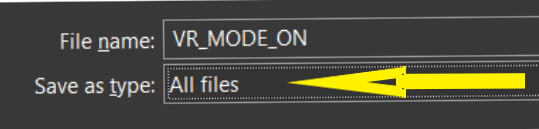
- VR_MODE_ON.bat – Please ensure you do not save as a text file because it wont work. Ensure you change the Lower Text Box to ALL FILES & Save!
- Please always run the script as ADMINISTRATOR so it can access all areas to do its work.
- Only USE ONE VR LAUNCHER – To select the launcher you wish to use such as META – STEAM – VIRTUAL DESKTOP – WINDOWS MIXED REALITY – PIMAX PLAY just remove the double dots before the path line ie ::
- Example: Currently the Meta Quest is selected in this script below.
No Dots :: in front of this line. Its Active when run.
start “” /b “C:\Program Files\Oculus\Support\oculus-client\Client.exe” >nul 2>&1 - EXAMPLE: Currently NOT SELECTED is the VIRTUAL DESKTOP LAUNCHER.
Remove the double dots to use this launcher and place them in front of the Meta Quest launcher line you see above that does not have dots before the line starts.
\/ – HERE!
:: start “” /b “C:\Program Files\Virtual Desktop Streamer\VirtualDesktop.Streamer.exe” >nul 2>&1
R MODE ON script:

@echo off
echo ===============================
echo VR MODE: ON
echo ===============================

:: Kill common background apps
taskkill /f /im OneDrive.exe >nul 2>&1
taskkill /f /im Teams.exe >nul 2>&1
taskkill /f /im Discord.exe >nul 2>&1
taskkill /f /im Spotify.exe >nul 2>&1

:: Browsers
taskkill /f /im msedge.exe >nul 2>&1
taskkill /f /im chrome.exe >nul 2>&1
taskkill /f /im firefox.exe >nul 2>&1

:: Stop non-essential Windows services
net stop "SysMain" >nul 2>&1
net stop "WSearch" >nul 2>&1
net stop "DiagTrack" >nul 2>&1
net stop "Print Spooler" >nul 2>&1

:: Switch to High Performance power plan
powercfg -setactive SCHEME_MIN

:: ==================================================
:: VR HEADSET CLIENT LAUNCHERS
:: Uncomment ONLY the one you use
:: ==================================================

:: META QUEST (Quest Link)
start "" /b "C:\Program Files\Oculus\Support\oculus-client\Client.exe" >nul 2>&1

:: META QUEST (Oculus Client alternative)
:: start "" /b "C:\Program Files\Oculus\Support\oculus-client\OculusClient.exe" >nul 2>&1

:: STEAMVR (Valve Index, Vive, Bigscreen Beyond, Pimax via SteamVR)
:: start "" /b "C:\Program Files (x86)\Steam\steam.exe" -applaunch 250820 >nul 2>&1

:: VIRTUAL DESKTOP (do NOT launch Oculus if using this)
:: start "" /b "C:\Program Files\Virtual Desktop Streamer\VirtualDesktop.Streamer.exe" >nul 2>&1

:: WINDOWS MIXED REALITY (Reverb G2, etc.)
:: start "" /b "explorer.exe" shell:AppsFolder\Microsoft.WindowsMixedRealityPortal_8wekyb3d8bbwe!App >nul 2>&1

:: PIMAX PLAY
:: start "" /b "C:\Program Files\Pimax\PimaxClient\PimaxClient.exe" >nul 2>&1

echo.
echo VR MODE ENABLED
pause
Reading the file you can see it first kills BACKGROUND APPS then BROWSERS then NON ESSENTIAL Windows SERVICES Then Switches to High Performance Power Plan Mode.
Ok I’m finished Playing! What’s Next?
I really hope this made your VR experience much more enjoyable and again we have ImMrChris Youtube Channel who wrote the script to thank for it. NOW we run another script to turn things back to normal.
Please follow the instructions as above to ensure this works as intended and again ensure you add or remove the DOUBLE DOTS from your required Virtual Reality Launcher.
Copy into notepad and again Save the file as VR_MODE_OFF.BAT – Again Run as administrator and everything will be returned to the original settings.
VR MODE OFF script

@echo off
echo ===============================
echo VR MODE: OFF
echo ===============================

:: Restart services
net start "SysMain" >nul 2>&1
net start "WSearch" >nul 2>&1
net start "DiagTrack" >nul 2>&1
net start "Print Spooler" >nul 2>&1

:: Restore Balanced power plan
powercfg -setactive SCHEME_BALANCED

:: Restart OneDrive if installed
if exist "%LOCALAPPDATA%\Microsoft\OneDrive\OneDrive.exe" (
    start "" "%LOCALAPPDATA%\Microsoft\OneDrive\OneDrive.exe"
)

echo.
echo NORMAL MODE RESTORED
pause
Impressions.
In trying this script or .BAT file out it certainly didn’t cause me any issues. Did it improve my VR experience? Well nothing dramatically changed so noting major positive or negative to report.
There are a lot of these tuning bat files out there and like many tuning videos we pour over the results are not always remarkably large. Maybe minor but in this case if you use the list of background apps then it may be of use.
The background services seem minimal so give it a try and see if it helps you, and let me know in the comments below.
Author
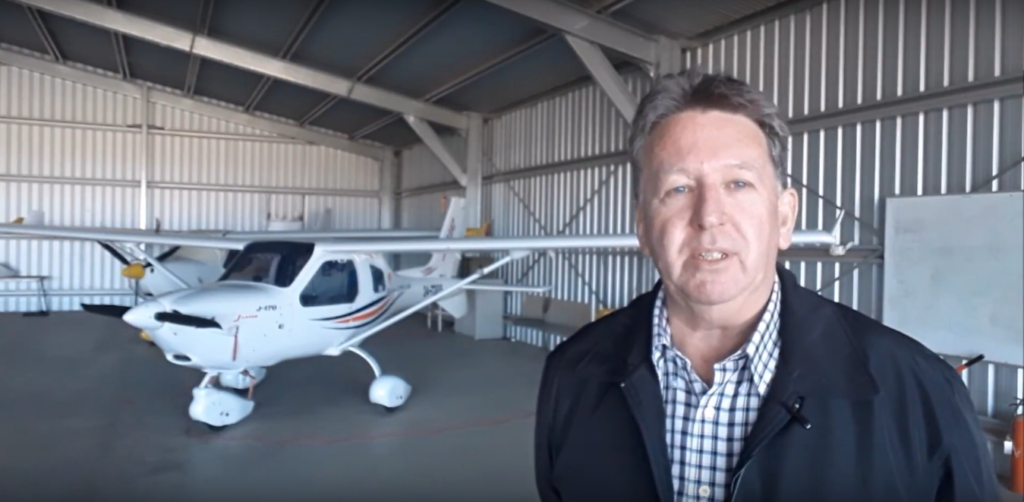
Brendon McAliece (Aka Gunnie) is a military veteran with 23 years working on Jet Fighters, their weapons systems and ejection seat/module systems as well as munitions and R&D. Involved with flight simulation since the 1980s, he has flown all the major flight simulators over the years.
He is an Australian expat who has lived in Malaysia, UK, Saudi Arabia and more recently Thailand. He is a multi-lingual blogger who loves to share his life experiences here on LetsFlyVFR.com and DreamingGuitar.com, with his lifestyle and Travel experiences Blog plus his Dreaming Coffee website.